Getting Started with FieldPad
Follow these four steps to set up your organization, create your first report, and get your team in the field.
What You'll Set Up
Organization Profile
Configure your company details, branding, and contact information.
Entities & Locations
Add your first location (lot, project, site, or property) with flexible terminology.
Custom Reports
Create forms tailored to your workflow using the drag-and-drop builder.
Team Management
Invite team members and assign roles with granular access permissions.
Quick Start Guide
Complete these steps to get your organization ready for field operations.
Set Up Your Organization
After signing up, navigate to Settings → Organization to configure your agency profile.
Create Your First Entity
Entities are flexible containers that adapt to your industry and operational needs. What an entity represents depends on your business type. During onboarding, you'll choose what to call them to match your industry terminology.
Examples by industry:
| Generic Term | Parking Enforcement | Project Management |
|---|---|---|
| Entity | Parking Lot | Project |
| Example | Main Campus Lot A | Hardware Lifecycle, Handhelds |
Other examples: contractors use "Job Sites", home inspectors use "Properties", mechanics use "Customers". Each entity has its own settings, assigned staff, and can be organized into groups.
When creating an entity, you'll provide:
- Name — Descriptive name (e.g., "Main Campus Lot A", "Hardware Lifecycle, Handhelds")
- Code — Unique short code used for public registration URLs and quick lookups (e.g., "LOTMA", "PROJ01")
- Address (optional) — Physical location, if applicable to your use case
Build Your First Report
Navigate to Reports → Manage Reports and click Create Report. Use the drag-and-drop builder to add fields from 17 available types including text, photos, GPS, signatures, and more.
Available field types include:
Configure Field Settings
Once you've added a field, click it to configure its settings:
- Label — The question or prompt shown to the user
- Required — Whether the field must be filled before submission
- Placeholder — Helper text shown in empty fields
- Options — For dropdowns and multi-selects, define the available choices
- Confidential — Hide this field from PDF exports (useful for internal notes)
Tip
Use Section Headers and Dividers to organize longer forms into logical groups. This makes forms easier to navigate.
Set Up Email Notifications
Navigate to Notifications and click Add Notification Rule. Configure automated emails that trigger when reports are submitted or approved.
What are notification rules?
Notification rules send automated emails to specific recipients when certain events occur. You can notify internal users, external stakeholders, or any email address.
Trigger options:
Template Variables
Use variables like {report_number}, {submitted_by}, and {entity_name} to personalize email content. You can also include any field value from the report using {field_YourFieldLabel}.
Invite Your Team
Go to Users and click Add User. Fill in name, email, username, role, and password. Assign entity access to restrict which locations each user can access.
Understanding Roles
When creating a user, you'll assign them a role that determines their permissions:
Go Mobile
FieldPad's mobile interface is built right into the web app—no app store download required. Access it from any device with a modern browser.
Access the Mobile App
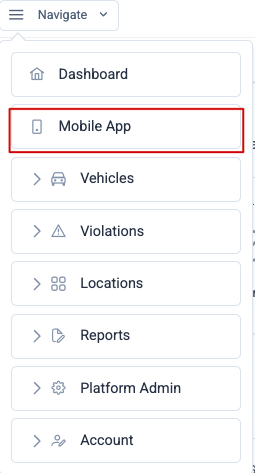
From the main navigation menu, click Mobile App to launch the mobile-optimized interface. This works on any device—phone, tablet, or desktop.
Start Your First Shift
After logging in, you'll land on the Mobile Hub—your command center for field operations.
Working Offline
FieldPad works even without an internet connection. If you lose connectivity while in the field, you can continue filling out and submitting reports. Data is saved locally and syncs automatically when connection is restored.
Ready to streamline your field operations?
Get started with FieldPad today and transform your team's workflow.
Frequently Asked Questions
Common questions for new organizations.